
 Intersection Check
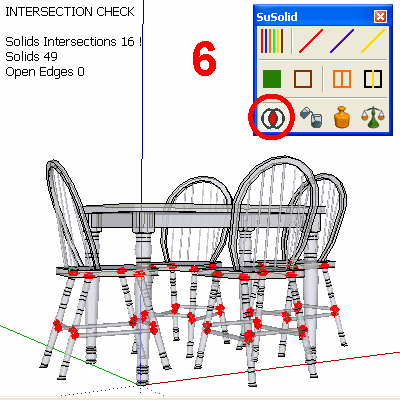
Finds and shows every place where solid groups and components overlap. Overlaps can be very expensive if you only find them in production.
How to use it
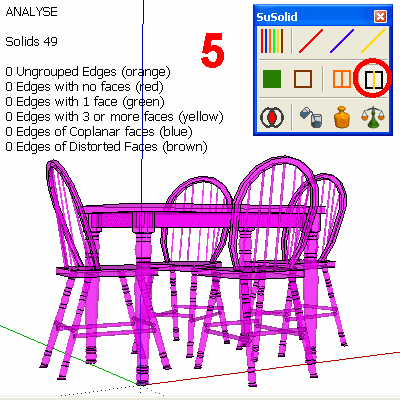
- Make the parts solid first: only solids are checked.
- Click Intersection Check. On large models this takes a while; SketchUp's status bar (bottom left) shows the progress.
- Read the counter: Solids Intersections (overlaps found), Solids (how many were checked) and Open Edges (edges that stop other groups from being solid).
- To see the overlapping parts better, turn on Hide Non Intersecting Solids.
- To leave the view, choose another tool, for example Select.
Before and after

Limitations and intentional geometry
- Non-solid groups are ignored, not reported as overlaps. Check the Open Edges number: if it isn't 0, some groups weren't checked. Run Analyse to find them.
- Parts that only touch are not overlaps.
- Some overlaps are intended, for example a pin pressed into a hole, or parts you will join into one. Decide for each one; SuSolid only shows them.
Check the result
After you move or trim the overlapping parts (SketchUp Pro's Tools › Solid Tools can subtract one from the other), run Intersection Check again. The Solids Intersections count should be 0, or only the overlaps you meant to keep.