
 Analyse
Analyse shows every problem in your model at once, as coloured edges and a counter for each kind of problem. Each colour matches a repair tool.
How to use it
- Click Analyse on the SuSolid toolbar, or choose Extensions › SuSolid › Analyse.
- Read the counter in the top-left corner of the SketchUp window: the number of solids, then one line per colour.
- Pick the repair tool for each colour (table below). Fix orange, red, green and yellow first, in that order: those four stop a group from being solid.
- After each repair the Analyse view comes back by itself, so you can see what is left.
- For a list instead of colours, use the Analyse Report.
- To leave Analyse, choose another tool, for example Select (Space).
What the colours mean
| Colour | Counter in SketchUp | What it means | Stops a solid? | Fix with |
|---|---|---|---|---|
| Magenta | Solids | Groups and components that are already solid, filled in see-through magenta. Not a problem. | No | Nothing to fix |
| Black, dashed | Not Solid | A box around each group or component that isn't solid, so small ones are easy to find. | Yes | The colours inside it |
| Orange | Ungrouped Edges | Geometry that isn't in a group or component, or sits next to a group at the same level. | Yes | Group |
| Red | Edges with no faces | Single edges that don't belong to any face. | Yes | Delete Single Edges |
| Green | Edges with 1 face | Open edges: the border of a hole or of an open surface. | Yes | Close Holes |
| Yellow | Edges with 3 or more faces | Internal or extra faces: more than two faces meet at one edge. | Yes | Delete Inside or Divide |
| Blue | Edges of Coplanar faces | Edges between two faces that lie in the same plane. | No | Delete Coplanar (optional) |
| Brown | Edges of Distorted Faces | Faces whose corners are not all in one plane. | No | Repair Distorted Faces (optional) |
| Cyan | Edges of Reversed Faces | Faces of a solid that point inwards. | No, but some slicers need it fixed | Flip Reversed Faces |
| Purple | Flat Groups | Groups with no thickness: every face lies in one plane, like the 2D people in SketchUp's templates. The repair tools leave them alone. | Yes | SketchUp's Push/Pull, if the part should be solid |
| Olive squares | Short Edges | Edges shorter than 1 mm (you can change this in Analyse Filter), too short to see. SketchUp can fail to make faces on them. | No, but repairs there can fail | If a repair leaves holes there: scale up, repair, scale back |
Before and after
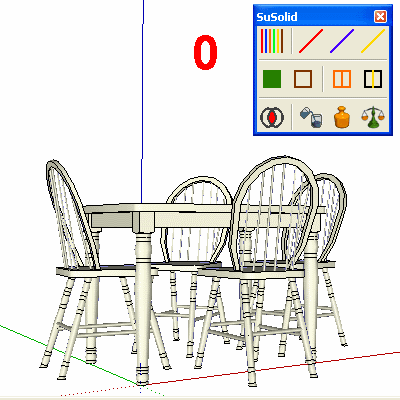
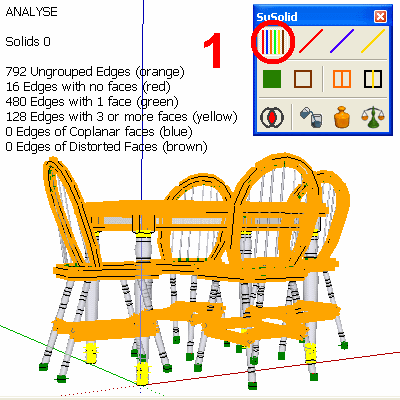

Limitations and intentional geometry
- Blue and brown edges don't stop a group from being solid. If you want to ignore them, turn them off in Analyse Filter (full version).
- Geometry that isn't meant to be solid, such as terrain or an open surface, always shows green edges, and flat drawings show purple. Select only the parts you want to be solid before running Analyse, or ignore those parts.
- Reversed faces (cyan) are only checked in solids.
- Very large models take a while; SuSolid is working even when SketchUp looks busy.
Check the result
When the orange, red, green and yellow counters are all 0, every group is solid and shows magenta. You can confirm a single part in SketchUp's Entity Info window: a solid shows as Solid Group or Solid Component, with its volume.
Analyse Report
Extensions › SuSolid › Analyse Report opens a window that lists each group that isn't solid (and each solid with reversed or distorted faces), with what is wrong with it in the same colours.
- Show zooms to the group and selects it.
- Fix runs the repairs that group needs, in the right order: stray edges, internal faces, coplanar edges, holes, distorted faces, then face direction. One Undo takes them all back. Fix All does this for every group in the list (full version). It turns the table and chairs from the worked example into solids in one click.
- Flat groups get a tip instead of a Fix button: use Push/Pull to give them thickness.
- Refresh analyses again, for example after you've used Push/Pull.
The report covers your selection, or the whole model if nothing is selected, and it keeps that while it is open.