
 Divide
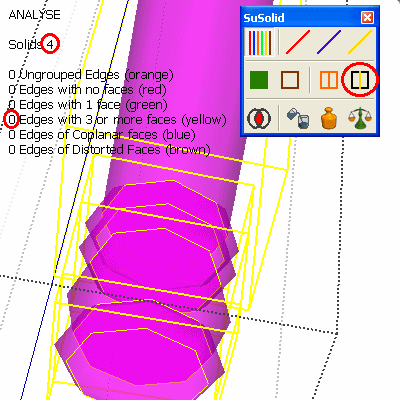
Divides geometry into separate groups along its internal faces, the yellow edges in Analyse. For example, two cubes that share one face become two solid cubes.
Divide or Delete Inside?
Both deal with yellow edges. Divide keeps the internal face and makes a separate solid on each side of it. Delete Inside removes the internal face and leaves one solid. Use Divide when the parts should stay separate, for example parts in different materials, or parts you print separately.
How to use it
- Fix orange, red and green first.
- Select the groups to divide, or nothing for the whole model.
- Click Divide. This can take a while on large models; SketchUp's status bar (bottom left) shows the progress.
Before and after
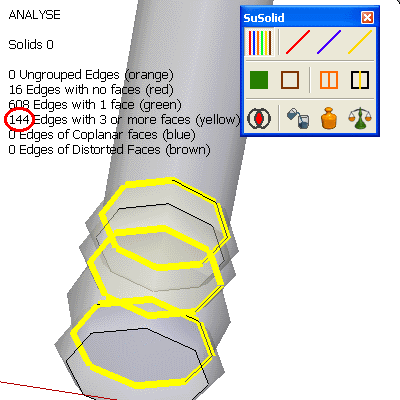
Limitations and intentional geometry
- Divide needs a lot of computing power. On a large model, divide a few groups at a time.
- Groups that are already solid, or that contain other groups, are left alone.
- Each new part keeps a copy of the shared wall, so parts that touch stay touching. Check them with Intersection Check if that matters for production.
Check the result
The yellow counter shows 0 and each part shows magenta. The Outliner lists the new groups.